
É possível analisar os dados do Bitrix24 com agentes de IA para desenvolvimento, como Codex ou Claude Code. Basta descrever a tarefa: o agente acessa os dados por meio do conector de BI, aplica os filtros e prepara a resposta.
Por exemplo, se você precisa consultar negócios bem-sucedidos dos últimos seis meses, envie ao agente o endereço do Bitrix24, a chave da Análise BI, o link para a documentação e descreva a tarefa. Ele obterá os dados pelo conector de BI, selecionará os negócios bem-sucedidos e exibirá o resultado.
Você não precisará analisar manualmente os parâmetros da consulta. Basta descrever a tarefa, verificar o resultado e ajustar a solicitação caso precise de outros dados ou de um formato de resposta diferente.
Neste artigo, explicamos como:
O que preparar para trabalhar com a ferramenta de IA
Para trabalhar, você vai precisar de:
Endereço do Bitrix24. É necessário para que a ferramenta de IA saiba para onde enviar as solicitações. Por exemplo: https://exemplo.bitrix24.com.br.
Chave da Análise BI. Necessária para acessar os dados. Ela pode ser obtida na seção CRM > Análises > Análises em tempo real > Análise BI > Configurações de Análise BI > Gerenciar chaves.
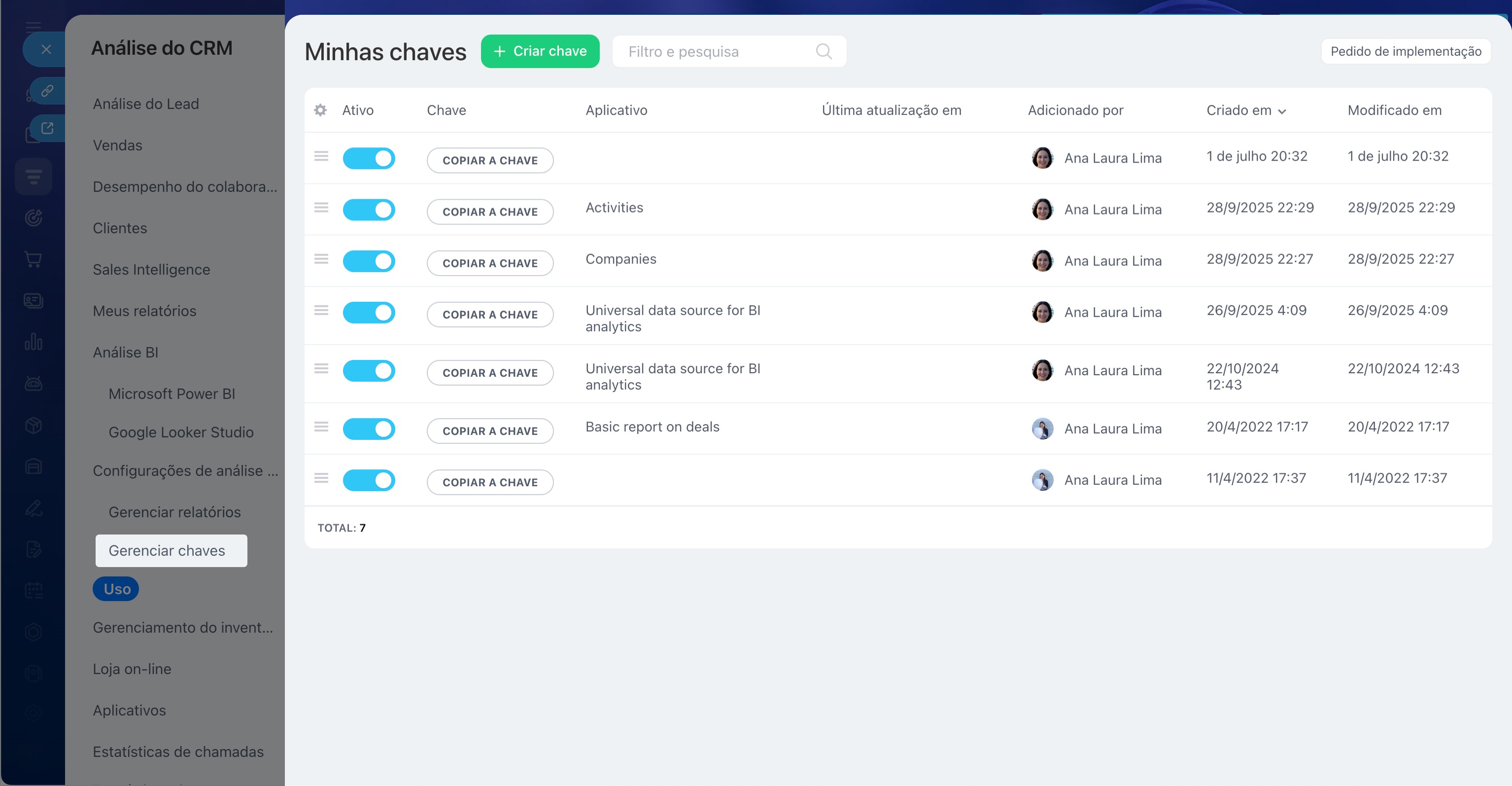
Link para a documentação ou para o skill. Ajuda o agente a entender quais consultas devem ser executadas. Um skill pré-configurado descreve como obter a lista de dados disponíveis, visualizar campos e solicitar linhas por meio do conector de BI.
Exemplo de skill para o agente de IA
| name | bitrix-bi-connector |
|---|---|
| description | Querying the Bitrix24 BI-connector HTTP API — listing tables (gds.php?show_tables), describing columns (gds.php?desc), and fetching rows (pbi.php) with dateRange and dimensionsFilters predicate filtering (operators EQUALS, CONTAINS, IN_LIST, BETWEEN, IS_NULL, NUMERIC_GREATER_THAN/LESS_THAN with optional EXCLUDE negation). Use this skill whenever the user mentions Bitrix24, bi-connector, biconnector, bi-token, gds.php, pbi.php, or asks how to query, count, or filter leads (crm_lead), deals (crm_deal), tasks (task), contacts, companies, or smart-process entities (crm_dynamic_items_*) from a Bitrix24 portal via its BI-analytics endpoints. Also use when the user is constructing a dimensionsFilters JSON body, debugging EMPTY_SELECT_FIELDS_LIST errors, or seeing unexpected empty results from a Bitrix BI request (often a UTF-8 encoding issue or an unknown-operator silent-failure). |
Bitrix24 BI-connector protocol
This skill captures the HTTP protocol for the Bitrix24 BI-analytics connector — the API that powers Power BI / Google Data Studio integrations and any custom client that reads CRM data from a Bitrix24 portal. Use it when constructing requests, helping users count/filter CRM entities, or implementing a BI client.
Endpoints overview
All three endpoints live on the client's Bitrix24 portal. Every request is HTTP POST and every body MUST include a key field — the client's bi-token. Only the path and query string vary: gds.php for metadata (list/describe), pbi.php for actual data rows.
Where the bi-token comes from: the BI-analytics key-management page of the client's own Bitrix24 portal (path varies by portal locale; on a fresh portal navigate via CRM → Analytics → BI-analytics → BI-analytics settings → Key management, or open {portal}/biconnector/key_list.php directly). Always ask the user for their own portal URL — never hardcode a reference portal (e.g. smith.bitrix24.com from sample docs) in production code.
Endpoint 1 — list tables
POST {portal}/bitrix/tools/biconnector/gds.php?show_tables
Body:
{"key": "<bi-token>"}
Returns [[table_name, table_description], ...].
Endpoint 2 — describe a table's columns
POST {portal}/bitrix/tools/biconnector/gds.php?desc&table=<table_name>
Body:
{"key": "<bi-token>"}
Returns an array of column objects. Key fields per column:
CONCEPT_TYPE—DIMENSIONorMETRIC. METRICs are typically aggregated and grouped by DIMENSIONs — preserve this distinction in any UI or query-builder code.ID— the identifier to use when referencing the column in subsequent requests (this is thenameyou pass in endpoint 3'sfields).NAME— human-readable label.TYPE— data type (e.g.NUMBER,STRING,YEAR_MONTH_DAY_SECOND).AGGREGATION_TYPE,GROUP_KEY,GROUP_CONCAT,GROUP_COUNT,IS_VALUE_SPLITABLE— aggregation/grouping hints, oftennull.
Endpoint 3 — fetch table rows
POST {portal}/bitrix/tools/biconnector/pbi.php?table=<table_name>
Body:
{"key": "<bi-token>", "fields": [{"name": "<column_id>"}, ...]}
fields lists which columns to return; use the ID values from endpoint 2. Response is a 2D array where the first row is the header (column names in request order) and the rest are data rows aligned to that header. Empty cells come back as null or "" — don't treat absence as an error.
Silent-failure traps
The BI-connector has several behaviours where bad requests succeed with HTTP 200 but return misleading results. These cause real bugs because they look indistinguishable from "no data matched":
Unknown fields are silently dropped. If you request fields that don't exist on the table, the API silently drops them. If all requested fields are unknown, you get {"error":"EMPTY_SELECT_FIELDS_LIST"} with HTTP 200 — it does not name which field was wrong. Always cross-check field IDs against endpoint 2 before querying.
Unknown operators are silently ignored. Spelling an operator wrong, or guessing one that doesn't exist (e.g. IS_NOT_NULL, STARTS_WITH), causes the server to return the unfiltered set — which looks like a successful query. Never assume an operator exists without testing it on a column with known distribution. Confirmed operators are listed below; treat everything else as unproven.
Request bodies must be UTF-8 encoded. If a filter value or URL parameter contains any non-ASCII character (in dimensionsFilters values, in a non-Latin table name, etc.), the body MUST be sent as UTF-8 bytes. A mismatched encoding does NOT produce an error — the API returns an empty result set (Rows: 0), which is indistinguishable from a legitimate "no matches". PowerShell Invoke-RestMethod -Body $stringWithNonAscii is a known offender on Windows because its default body encoding is not UTF-8: pass [Text.Encoding]::UTF8.GetBytes($json) and Content-Type: application/json; charset=utf-8 instead. In any language, set the HTTP client's body encoding to UTF-8 explicitly when sending non-ASCII filter values.
Date-range filtering
Add dateRange and optionally configParams.timeFilterColumn to the pbi.php body:
{ "key": "bi-token", "dateRange": {"startDate": "2018-07-19", "endDate": "2018-08-02"}, "configParams": {"timeFilterColumn": "DATE_CREATE"}, "fields": [{"name": "DATE_CREATE"}, {"name": "STATUS_SEMANTIC_ID"}] }
startDateis treated as00:00:00of that day;endDateas23:59:59.999(inclusive).- For a single day, set
startDate = endDate. timeFilterColumnis the column ID to filter on. If omitted, the API uses the first date/datetime column in the table — usually safe but explicit is better.
Rule — always filter: always pass a dateRange when calling pbi.php, even if the user didn't ask. Without it, unfiltered tables can return thousands or millions of rows on real portals. Default to "last 3 months" (endDate = today, startDate = today − 90 days) unless the user specifies otherwise. The metadata endpoints (show_tables, desc) don't accept dateRange — only pbi.php does. Exception: if you're using dimensionsFilters (below) and it sufficiently narrows the result (e.g. filtering by a specific ID), dateRange is optional.
Predicate filtering with dimensionsFilters
Add to the pbi.php body a key dimensionsFilters whose value is an array of arrays of condition objects. Outer arrays are joined by AND; inner conditions within one array are joined by OR. Any number of inner conditions and any number of outer groups is allowed.
{ "key": "bi-token", "fields": [{"name": "ID"}, {"name": "CREATED_BY_ID"}], "dimensionsFilters": [ [ {"fieldName": "ID", "values": ["2"], "type": "INCLUDE", "operator": "EQUALS"}, {"fieldName": "ID", "values": ["12706"], "type": "INCLUDE", "operator": "EQUALS"} ], [ {"fieldName": "CREATED_BY_ID", "values": ["1"], "type": "INCLUDE", "operator": "EQUALS"} ] ] }
Above: (ID=2 OR ID=12706) AND CREATED_BY_ID=1.
Condition object fields
fieldName— column ID from endpoint 2.values— always a list of strings, even for numeric columns (e.g."1", not1).type—"INCLUDE"(apply the operator) or"EXCLUDE"(invert it).EXCLUDEworks as a universal negator on top of any operator:EXCLUDE + EQUALS= "not equal",EXCLUDE + CONTAINS= "doesn't contain",EXCLUDE + IN_LIST= "not in list",EXCLUDE + IS_NULL= "not null" (the stand-in for the missingIS_NOT_NULL).operator— confirmed values:"EQUALS"— exact match;valuesis a single-element list, e.g.["1"]."CONTAINS"— substring match, e.g.{"fieldName":"TITLE","values":["CRM:"],"operator":"CONTAINS"}."IN_LIST"— field value is any of the listed strings, e.g.{"fieldName":"ID","values":["1","2"],"operator":"IN_LIST"}. Prefer this over OR-ing multipleEQUALSconditions for the same field — cleaner and one condition object instead of N."IS_NULL"— null check;valuesMUST be an empty list ([]). For non-null, useEXCLUDE + IS_NULL(there is no standaloneIS_NOT_NULLoperator — the server silently ignores it and returns all rows unfiltered). Caveat: thedescmetadata does NOT expose which fields are nullable, so there's no way to verify at runtime. Only use this when you already know from data inspection or domain context that the field can hold null."BETWEEN"— value in range, both endpoints inclusive.valuesMUST be a 2-element list[low, high](as strings, like all other operators). Behaviour on non-numeric columns is unspecified — treat it as numeric/date-only and test before applying to strings."NUMERIC_GREATER_THAN"/"NUMERIC_GREATER_THAN_OR_EQUAL"/"NUMERIC_LESS_THAN"/"NUMERIC_LESS_THAN_OR_EQUAL"—>,>=,<,<=. Single-elementvalues, e.g.["2"]. Behaviour on non-numeric columns is unspecified — use on numeric/date columns and verify before applying to strings.- Anything else (e.g.
STARTS_WITH,ENDS_WITH,REGEX) is unproven. Per "Silent-failure traps" above, an unknown operator returns the full unfiltered table — which looks like a wide-open match. Test on a known-distribution column before relying on it.
Useful pattern — fetch a single row by ID
"dimensionsFilters": [[{"fieldName":"ID","values":["19244"],"type":"INCLUDE","operator":"EQUALS"}]] Success/failure semantics in CRM entities
Bitrix24 uses a one-letter "semantic" code to indicate where an entity sits in its lifecycle. Same codes, different field names across entities — easy to mix up:
P— in progress (non-terminal)S— successful terminal stateF— failed terminal state
| Entity (BI table) | Lifecycle concept | Semantic field |
|---|---|---|
| crm_lead | Status |
STATUS_SEMANTIC_ID (raw) / STATUS_SEMANTIC (label)
|
| crm_deal | Stage |
STAGE_SEMANTIC_ID (raw) / STAGE_SEMANTIC (label)
|
To count "successful" leads or deals, filter on the _SEMANTIC_ID field equal to S. To count "completed" (any terminal state), include both S and F. The text-label variants (STATUS_SEMANTIC, STAGE_SEMANTIC) come back as localized strings in the portal's UI language — use them for display, not for filtering. The single-letter _ID codes are stable across locales and should always be the key you filter on. Smart-process entities (crm_dynamic_items_*) likely follow the deal convention (stages) — verify via endpoint 2 before assuming.
Non-CRM entities like task may use a completely different schema (e.g. a raw STATUS column holding a localized human-readable string, with no semantic code at all). Always check endpoint 2 before generalizing — don't assume STATUS_SEMANTIC_ID exists outside the CRM tables documented above.
Credential handling
The bi-token is a credential. Treat it as you would any API key: never log it, never commit it to source control, never echo it back in error messages or stack traces. When building configuration scaffolding for an implementation, read the token from an environment variable or a gitignored config file — never a hardcoded constant in committed code.
A tarefa a ser resolvida. Descreva a tarefa não como uma solicitação técnica, mas como o resultado desejado. Exemplo: "Mostre negócios bem-sucedidos dos últimos 6 meses" ou "Encontre leads dos últimos 30 dias e agrupe-os por responsável".
Como definir uma tarefa para o agente de IA
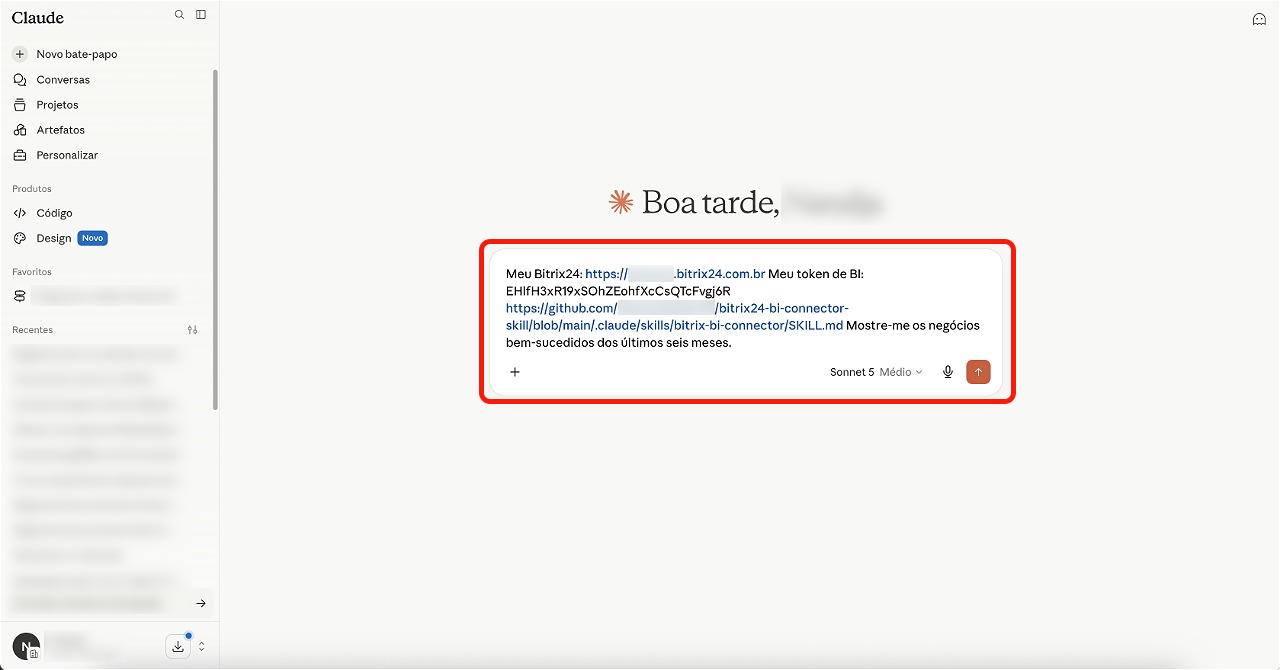
Para definir uma tarefa, basta enviar uma solicitação no chat com o agente de IA. Uma boa solicitação contém tudo o que é necessário para o trabalho: o endereço do Bitrix24, a chave da Análise BI, o link para a documentação e a descrição da tarefa.
Exemplo de solicitação:
Meu Bitrix24: https://exemplo.bitrix24.com.br Meu token de BI: sua_chave_da_Análise_BI Link. Mostre-me os negócios bem-sucedidos dos últimos seis meses.
Na solicitação, você pode fornecer ao agente o link para uma skill pronta. Nela, está descrito como trabalhar com o conector de BI: obter a lista de dados disponíveis, visualizar os campos do conjunto desejado e solicitar linhas com filtros por data e condições.
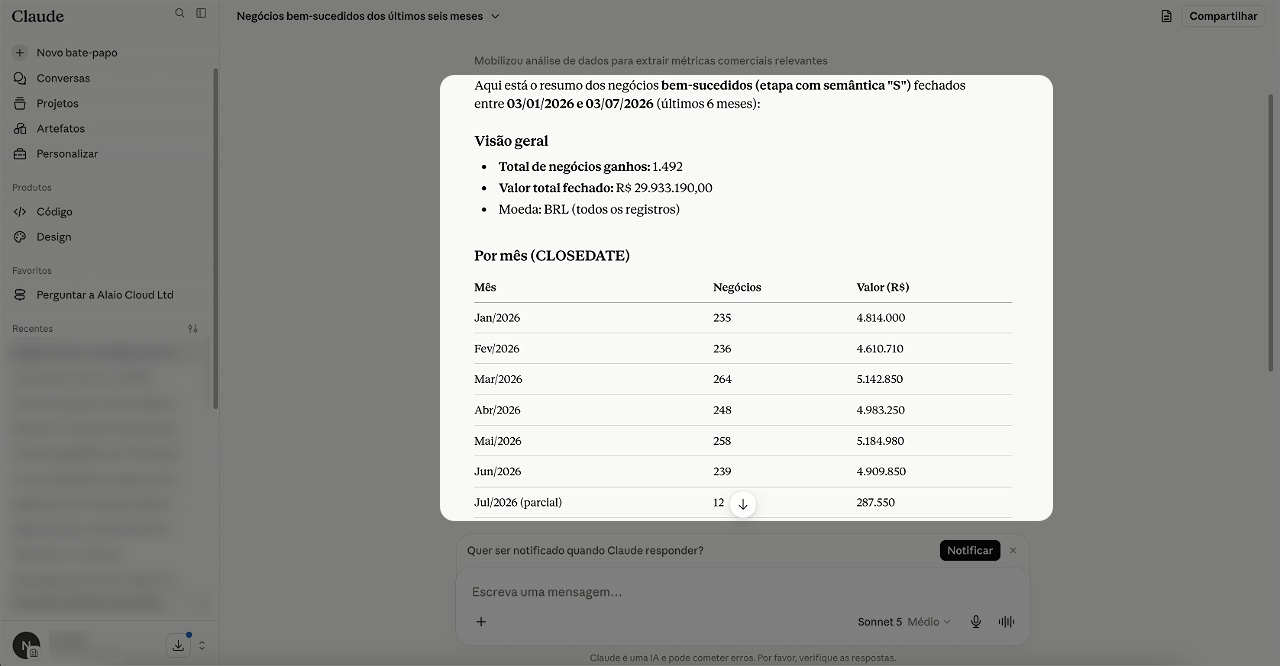
Em seguida, o agente executará a tarefa e retornará uma tabela com a amostra dos dados e a exibição. Este é um exemplo do formato de resposta. No trabalho real, o resultado depende dos dados no Bitrix24 e dos campos disponíveis por meio do conector de BI.
Como ajustar a consulta
A primeira resposta pode ser muito genérica. Nesse caso, você pode ajustar a tarefa diretamente no chat: pedir para mostrar apenas os indicadores desejados, agrupar os dados ou fazer um resumo curto.
Por exemplo, você pode usar solicitações como:
- Mostrar o valor total dos negócios bem-sucedidos – "Mostre apenas o valor total dos negócios bem-sucedidos dos últimos seis meses e a quantidade de negócios".
- Agrupar negócios – "Agrupe os negócios bem-sucedidos por responsável. Mostre a quantidade de negócios e o valor total por cada colaborador".
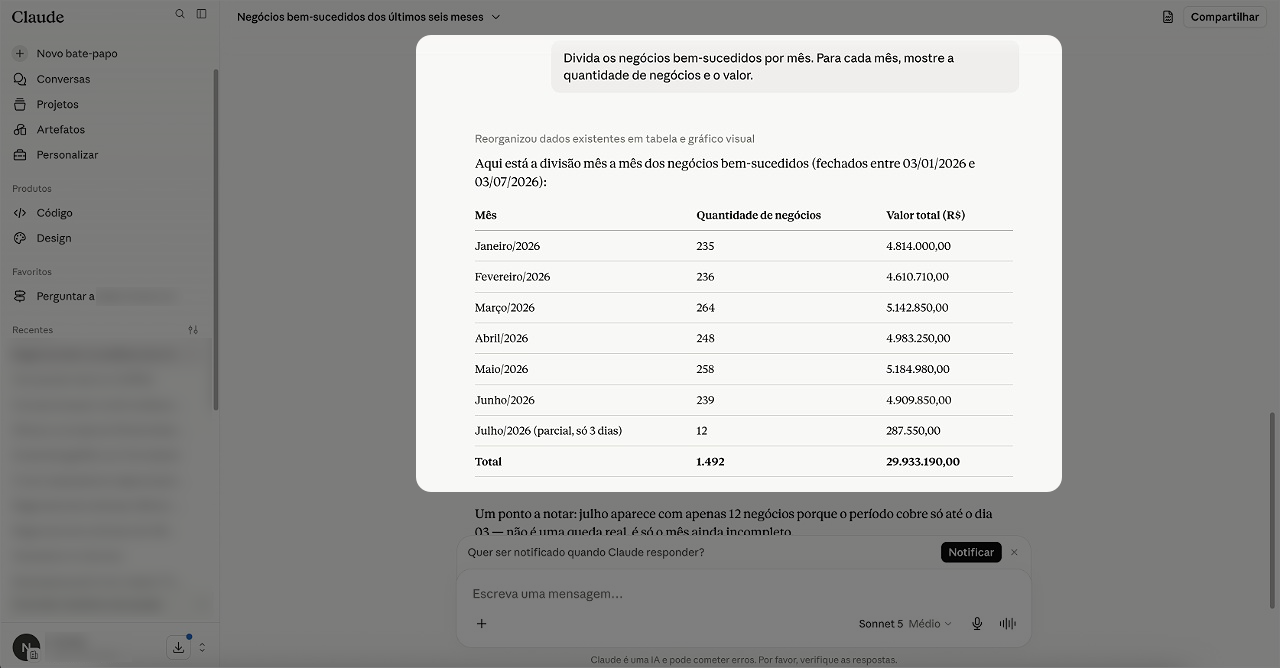
- Dividir negócios por mês – "Divida os negócios bem-sucedidos por mês. Para cada mês, mostre a quantidade de negócios e o valor".
- Fazer um resumo dos dados – "Faça um resumo curto: em qual mês houve mais negócios bem-sucedidos e quem tem o maior valor total".
Os ajustes ajudam a obter a resposta no formato desejado. O agente de IA não apenas retorna linhas de dados, mas adapta o resultado à tarefa prática.
Como os agentes de IA trabalham com os dados
O agente de IA trabalha com o conector de BI seguindo as mesmas regras de um aplicativo comum. Ele envia solicitações HTTP para o Bitrix24 e recebe respostas no formato JSON. O conector de BI não retorna todos os dados em uma única solicitação. O trabalho com ele ocorre em etapas:
1. Primeiro, o agente descobre quais dados podem ser solicitados por meio do conector de BI.
Conjuntos de dados do Criador de BI
Exemplo de solicitação para obter a lista de dados disponíveis
Endereço da solicitação:
POST https://exemplo.bitrix24.com.br/bitrix/tools/biconnector/gds.php?show_tables
Corpo da solicitação:
{ "key": "sua_chave_da_Análise_BI" }
Exemplo de resposta:
[ [ "crm_lead", "Leads" ], [ "crm_deal", "Negócios" ], [ "task", "Tarefas" ] ]
2. Em seguida, o agente de IA verifica quais campos estão disponíveis no conjunto de dados desejado. A resposta retorna a descrição dos campos: nome técnico, nome amigável, tipo de dados e parâmetros adicionais.
Exemplo de solicitação para obter a descrição dos campos
Endereço da solicitação:
POST https://exemplo.bitrix24.com.br/bitrix/tools/biconnector/gds.php?desc&table=crm_lead
Corpo da solicitação:
{ "key": "sua_chave_da_Análise_BI" }
Exemplo de resposta:
[ { "ID": "ID", "NAME": "Chave única", "TYPE": "NUMBER" }, { "ID": "TITLE", "NAME": "Nome do lead", "TYPE": "STRING" }, { "ID": "DATE_CREATE", "NAME": "Data de criação", "TYPE": "DATETIME" }, { "ID": "STATUS_ID", "NAME": "Status", "TYPE": "STRING" }, { "ID": "ASSIGNED_BY_ID", "NAME": "Responsável", "TYPE": "NUMBER" } ] 3. Quando o agente de IA seleciona os campos desejados, ele solicita as linhas de dados.
Exemplo de solicitação para obter dados
Endereço da solicitação:
POST https://exemplo.bitrix24.com.br/bitrix/tools/biconnector/pbi.php?table=crm_lead
Corpo da solicitação:
{ "key": "sua_chave_da_Análise_BI", "fields": [ { "name": "ID" }, { "name": "TITLE" }, { "name": "DATE_CREATE" }, { "name": "STATUS_ID" }, { "name": "ASSIGNED_BY_ID" } ] }
Exemplo de resposta:
[ [ "ID", "TITLE", "DATE_CREATE", "STATUS_ID", "ASSIGNED_BY_ID" ], [ "125", "Solicitação de consultoria", "2026-05-12 10:15:32", "NEW", "17" ], [ "126", "Pedido de equipamentos", "2026-05-13 14:42:10", "IN_PROCESS", "21" ] ]
O que verificar no resultado
O agente de IA ajuda a obter e processar os dados, mas o resultado precisa ser verificado. Confira:
- se o período foi selecionado corretamente,
- se os dados corretos foram incluídos na amostra,
- se os filtros foram aplicados corretamente,
- se há campos desnecessários,
- se a exibição corresponde à tabela.
Por exemplo, se você pediu negócios bem-sucedidos dos últimos seis meses, verifique se não há negócios em andamento ou perdidos na resposta. Se precisar apenas de negócios bem-sucedidos e fechados, especifique isso na solicitação.
Destaques
- Os dados do Bitrix24 podem ser analisados com agentes de IA, como Codex ou Claude Code.
- Basta descrever a tarefa: o agente acessa o conector de BI, obtém os dados, aplica os filtros e prepara a resposta.
- Para trabalhar, são necessários o endereço do Bitrix24, a chave da Análise BI e o link para a documentação ou uma skill pronta.
- A chave da Análise BI não pode ser publicada nem armazenada em local aberto. Ela concede acesso aos dados do Bitrix24.